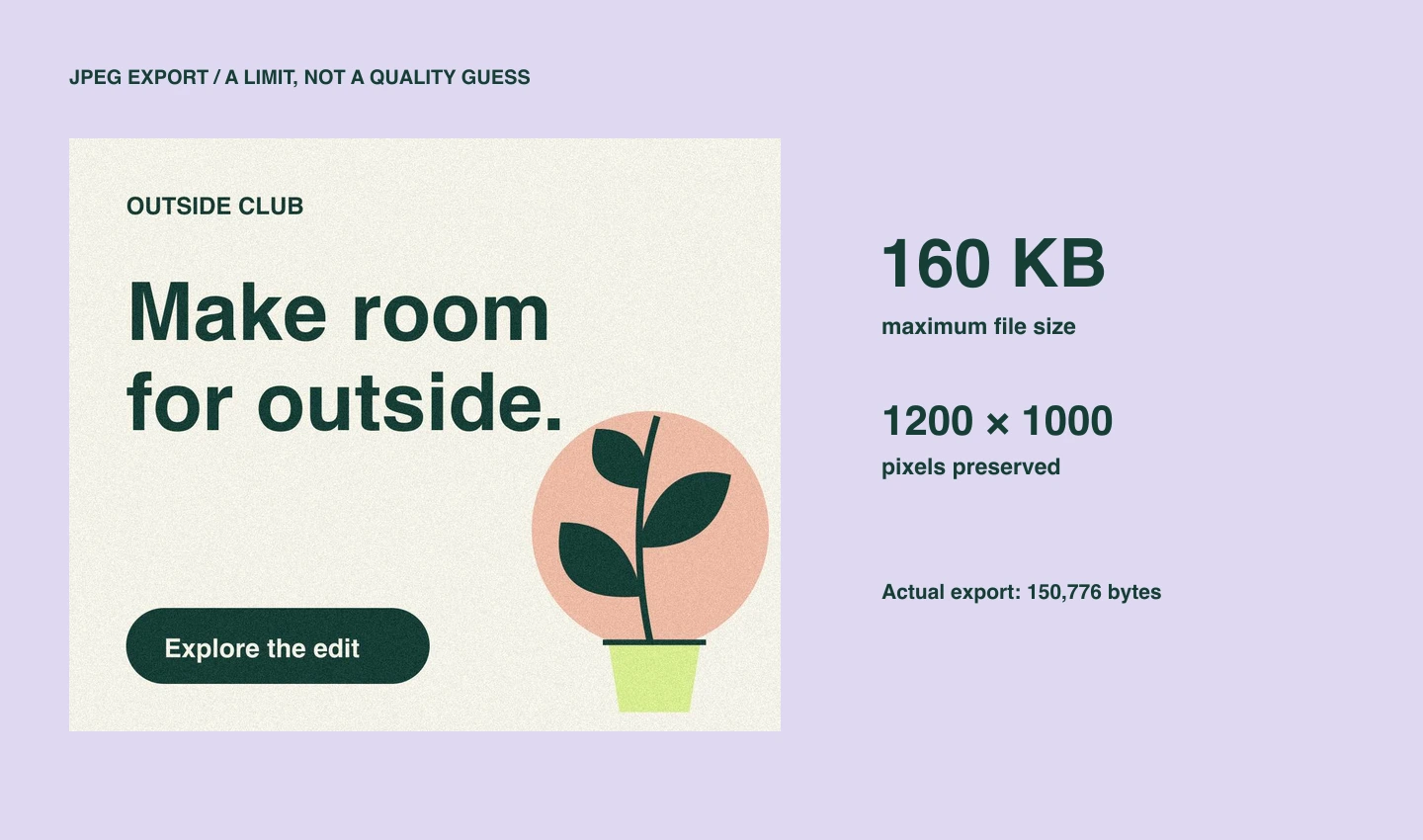
Start with a detailed practice image
Download jpeg-size-limit.psd and open it in Photoshop. It contains one 1200 × 1000 artboard with original, textured “Outside Club” artwork. The texture makes compression differences easier to inspect. It is an illustration, not a stock photograph or client asset.
Use Plicsy on a supported Apple-silicon Mac with activation complete and an internet connection available. Keep Export beside PSD enabled. This tutorial limits the exported JPEG file itself; it does not enforce the total weight of an HTML banner, its scripts, or a delivery ZIP.
1. Put the limit in the asset name
The artboard is already named:
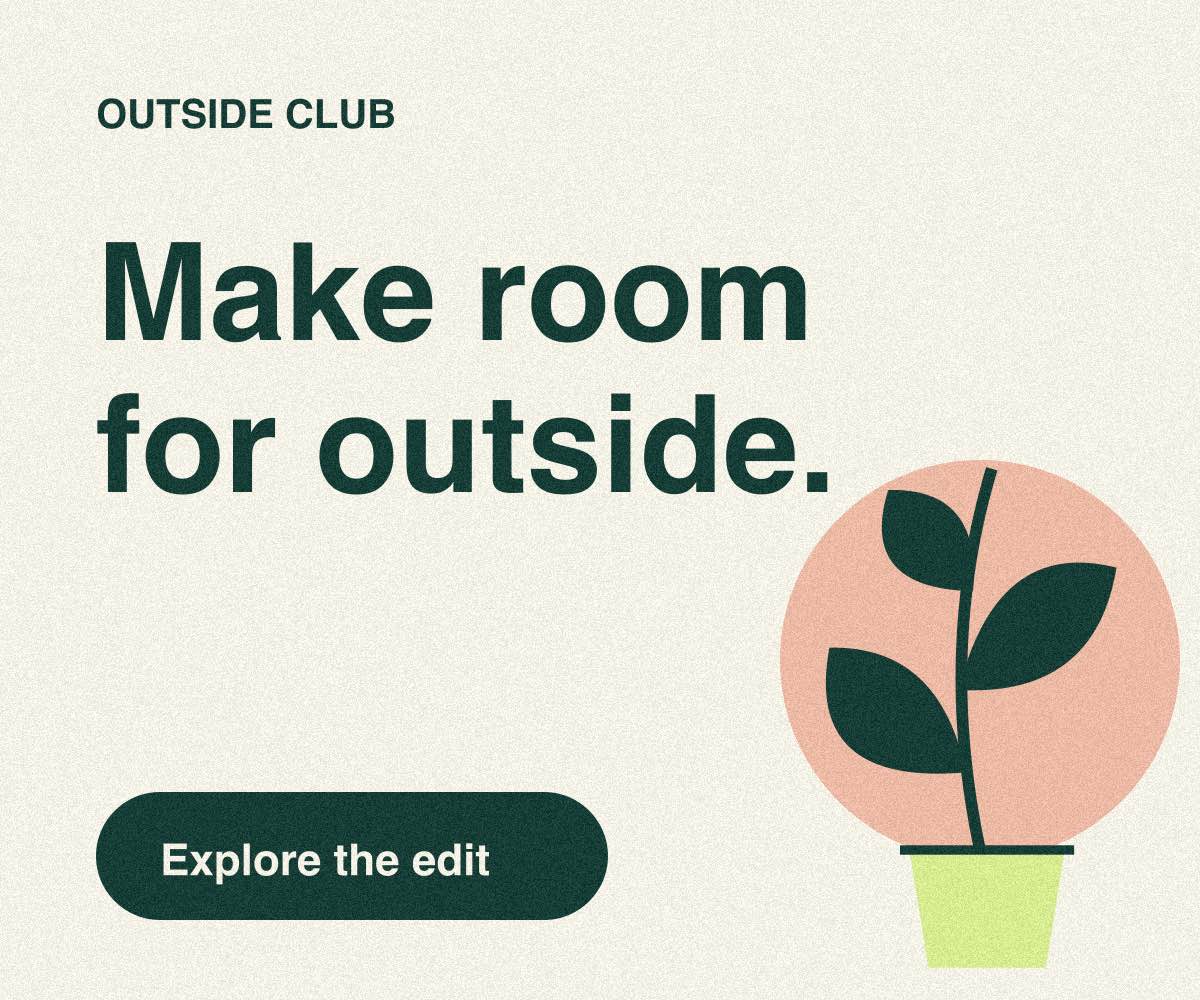
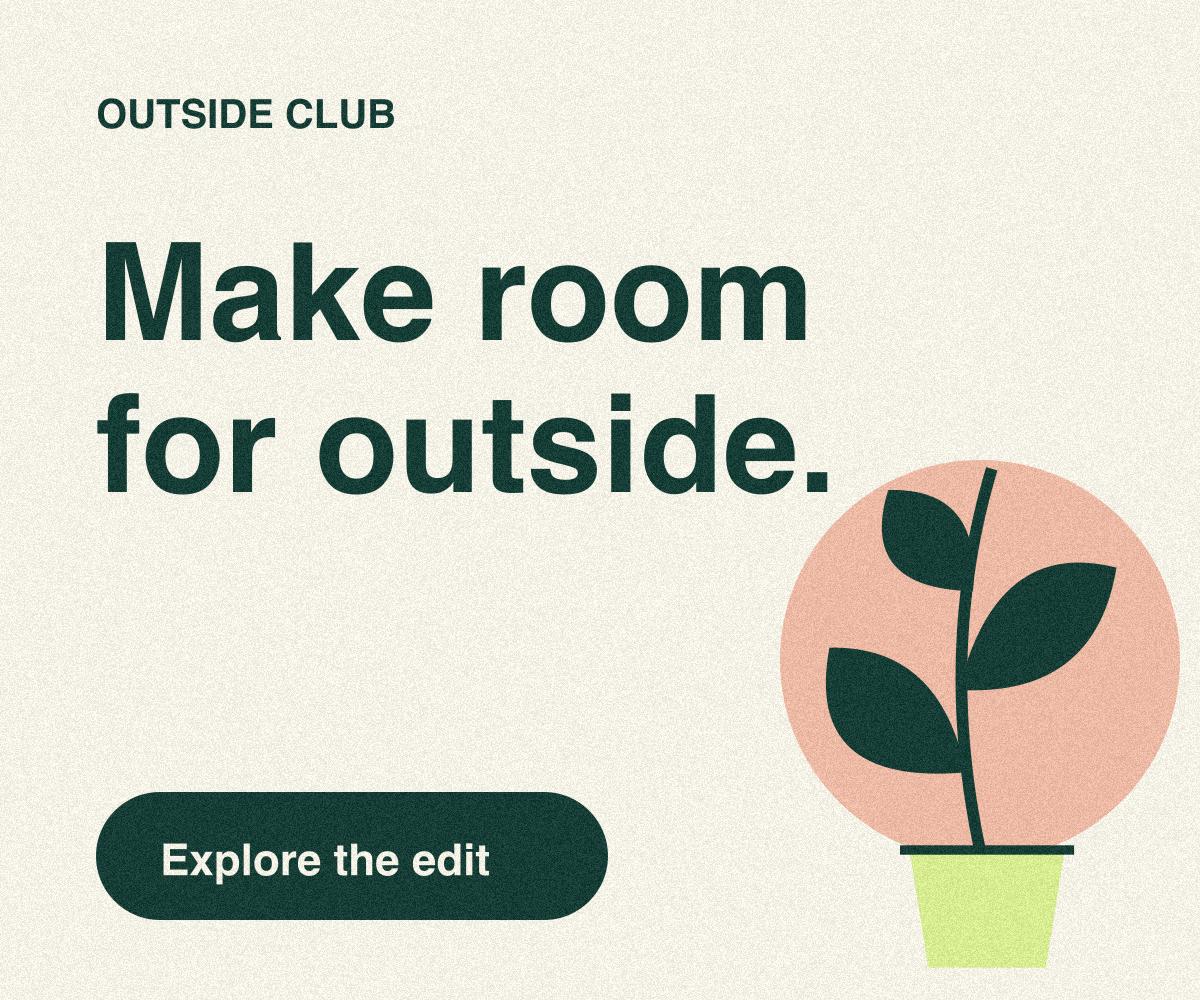
banner.jpg160kb, reference.jpg100%The comma requests two files from the same composition. banner.jpg160kb asks for banner.jpg with a maximum of 160,000 bytes. reference.jpg100% asks for a quality-100 JPEG called reference.jpg, so you can compare the results.
The suffix is an instruction and is removed from the output filename. You can use a size target on a named layer or group too; using an artboard here makes the exported canvas unambiguous.
kb means decimal kilobytes: 1 KB = 1,000 bytes. kib means 1,024 bytes. Check which unit your delivery specification actually requires. A 160 KB limit and a 160 KiB limit are different budgets.
2. Export and read the report
Click Export All. Open the jpeg-size-limit folder beside the PSD. It should contain banner.jpg and reference.jpg. The neighboring jpeg-size-limit.txt report records actual bytes, quality, and the target.
Our check of the downloadable sample produced:
| File | Dimensions | Actual bytes | Quality |
|---|---|---|---|
| banner.jpg | 1200 × 1000 | 150,776 | 41 |
| reference.jpg | 1200 × 1000 | 1,315,058 | 100 |
The capped file is below 160,000 bytes, and both images retain the same pixel dimensions. These are measured results for this sample and test environment, not a promise that other artwork will produce the same bytes or quality.
Open the actual capped JPEG and the quality-100 reference to compare them at full resolution. Judge fine text, edges, and texture before delivery: fitting a limit does not guarantee acceptable visual quality.
3. Understand what a size target changes
Plicsy adjusts JPEG quality, not width or height, to try to meet the target. It uses a bounded search of integer quality settings, with up to nine encodes, and selects the highest tested quality that fits. This is not a guarantee of the globally highest possible quality.
If a quality-100 JPEG already fits, Plicsy keeps it smaller than the limit. It does not add padding to reach exactly 160 KB. JPEG remains a lossy format even at quality 100, and transparent content is composited over white.
You can also request a size limit for WebP, for example banner.webp160kb. WebP byte targets use lossy encoding. PNG and GIF do not support these size-target suffixes.
What if the image cannot fit?
If even quality 1 exceeds the target, that asset fails and the report explains the measured size and limit. Plicsy preserves the previous output instead of replacing it with an oversized image. Always read the report: an existing file can be left over from an earlier successful run.
You can then simplify the artwork, choose a different format if permitted, or explicitly reduce its dimensions if the delivery specification allows it. Increasing the byte limit only makes sense when the recipient accepts a larger file.
To try a different budget, change only 160kb in the artboard name and export again. Keep the reference output for comparison. For a real campaign, apply the same naming pattern to each deliverable and use artboard folders to keep the assets organized.